
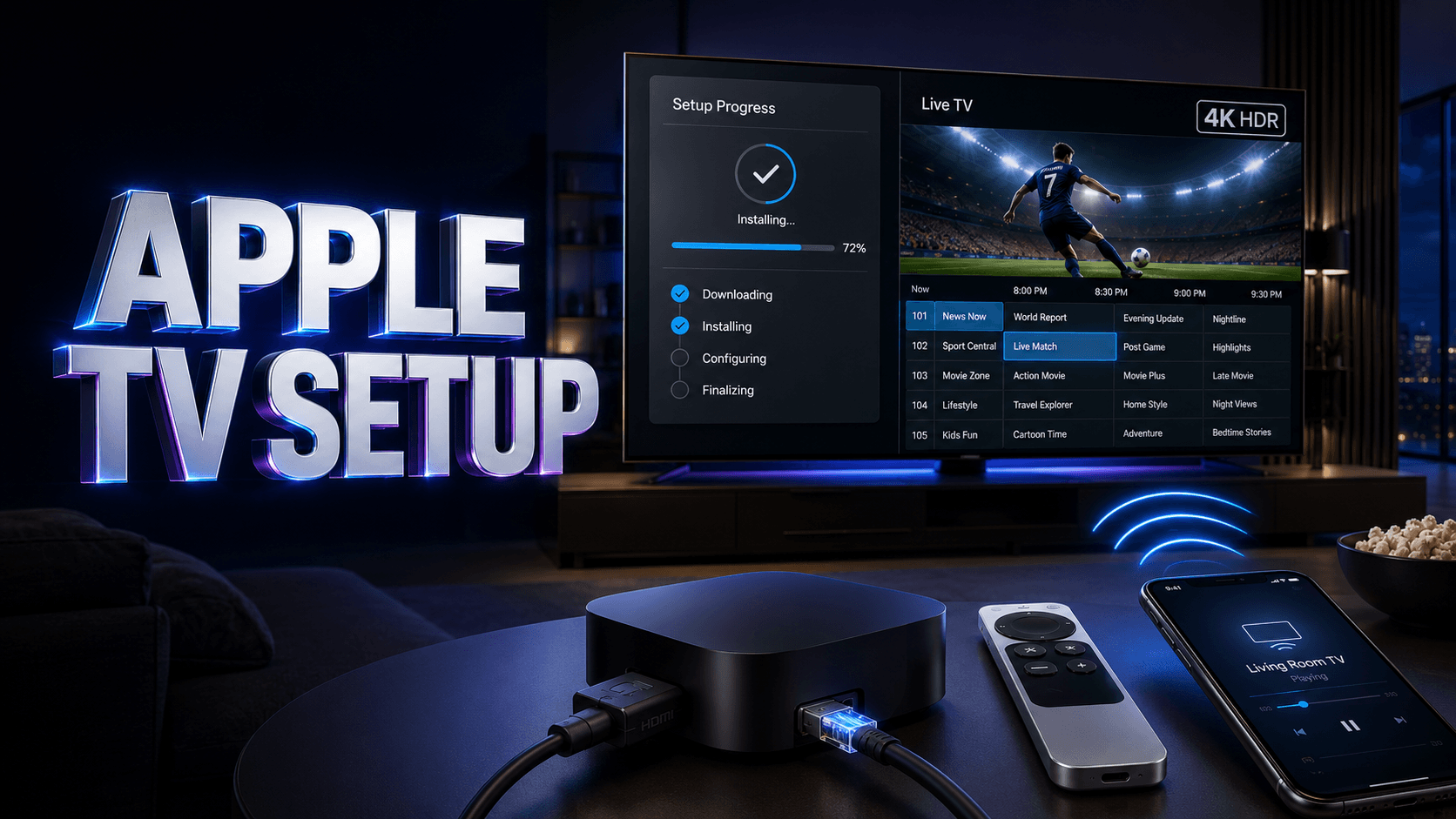
Completing an Apple TV IPTV setup provides premium streaming experiences leveraging Apple’s powerful tvOS platform, superior hardware performance, and intuitive remote control. Whether you own Apple TV 4K or Apple TV HD, the process involves selecting compatible applications, installing software, configuring credentials, and optimizing settings.
Pre-Installation Requirements
Before beginning your Apple TV IPTV setup, ensure your device runs latest tvOS by navigating to Settings > System > Software Updates. Sign in with your Apple ID to access App Store. Connect via HDMI and complete initial configuration.
Test your connection using Speedtest.net through another device. Apple TV IPTV requires minimum 15 Mbps for HD and 35+ Mbps for 4K with HDR.
Choosing Your IPTV Service
Your Apple TV IPTV setup requires a legitimate subscription from a licensed provider. The USA IPTV service comparison guide providers offer official tvOS applications through Apple’s App Store, eliminating security concerns.
Verify your provider explicitly supports Apple TV before purchasing. Check their website for tvOS compatibility and setup documentation.
Step-by-Step Installation
App Store Method (Recommended)
- Access App Store: Select App Store icon from home screen
- Search Provider App: Use search for your IPTV provider
- Verify Developer: Confirm publisher matches provider
- Download: Select Get or download button
- Launch: Open from home screen
- Sign In: Enter subscription credentials
- Sync Guide: Wait for channel list to populate
- Configure: Adjust quality and preferences
M3U Playlist Method
Some Apple TV IPTV setup scenarios use generic player apps accepting M3U playlist URLs. Install compatible player from App Store, then enter playlist URL in app settings.
Optimizing Performance
Network Connection
For best Apple TV IPTV setup performance, use Ethernet via Apple TV’s port rather than Wi-Fi. Wired connections eliminate interference and provide consistent bandwidth.
Video Settings
Configure output through Settings > Video and Audio. Select appropriate resolution matching your TV (4K HDR, 4K SDR, or 1080p). Enable “Match Content” for automatic frame rate switching.
Find Apple TV Compatible Services
Compare providers with official tvOS apps, 4K HDR support, and seamless Apple TV integration.
Using Siri Remote
Master Siri Remote shortcuts for efficient navigation. Press and hold TV/Control Center for quick settings. Swipe gestures navigate menus, clicking selects items. Play/Pause button controls playback.
Troubleshooting Common Issues
Installation Problems
If apps won’t install during Apple TV IPTV setup, verify sufficient storage in Settings > General > Manage Storage. Delete unused apps. Confirm Apple ID has valid payment information.
Authentication Failures
Double-check credentials entered exactly as provided. Verify subscription is active and you haven’t exceeded device limits. Some providers require device registration.
Buffering Issues
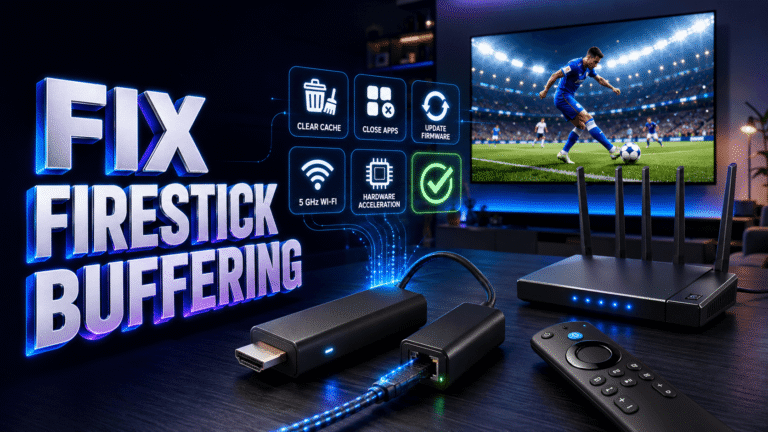
Persistent buffering typically indicates network problems. Run speed tests, switch to Ethernet, restart router, and close other activities. Test another streaming service—if those work but IPTV buffers, contact your provider.
Missing Channels
Incomplete synchronization often results from interrupted setup. Force quit the app by double-pressing TV button and swiping up, then relaunch for full guide download.
Advanced Features
Multi-User Profiles
Apple TV supports multiple profiles, each with separate app data and preferences. Set up family members with individual profiles for personalized favorites.
AirPlay Integration
Your Apple TV IPTV setup enables AirPlay streaming from iPhone or iPad, useful for providers without tvOS apps but with iOS applications.
Security Best Practices
Only install apps from official App Store. Never share IPTV credentials publicly. Enable two-factor authentication on Apple ID. Keep tvOS updated to patch vulnerabilities.
Related USA IPTV Guides
If your provider supplies a playlist, use our M3U setup guide. For service-selection criteria, visit the USA IPTV guide.
FAQ
Can all IPTV services work on Apple TV?
No, only providers with official tvOS apps or services compatible with generic M3U players work properly. Verify your provider supports Apple TV before subscribing.
Do I need Apple TV 4K for IPTV?
Apple TV HD works fine for standard HD IPTV up to 1080p. Apple TV 4K is required only for 4K resolution and HDR support from providers offering ultra-high-definition channels.
Why won’t my IPTV app appear on Apple TV?
App Store availability varies by region. Your provider’s app may not be available in USA App Store or might be restricted to specific countries. Check with provider about tvOS app availability.
Can I use VPN with Apple TV for IPTV?
Apple TV doesn’t natively support VPN apps. You must configure VPN at router level or use DNS proxy services. However, VPNs typically reduce streaming performance.
Ready for the Best IPTV Subscription?
Join thousands of satisfied customers with the best and fastest family subscription in the USA, UK, Canada & Australia.