
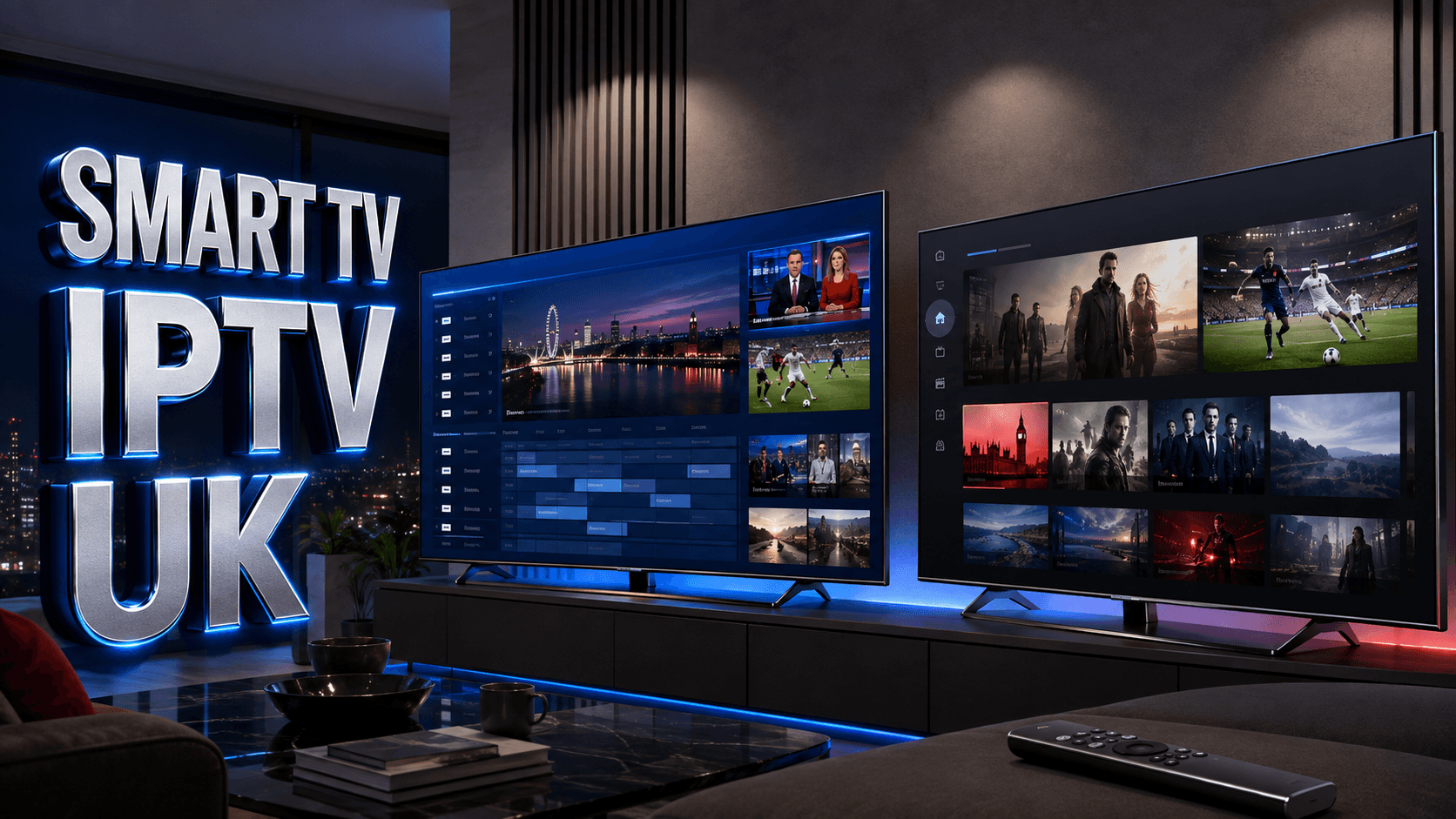
Selecting the right IPTV player smart TV UK application transforms your Samsung or LG television into a comprehensive streaming platform without requiring additional hardware like Fire TV Sticks or Android boxes. Modern Smart TVs manufactured from 2018 onward possess sufficient processing power and memory to handle IPTV streaming directly, offering cleaner setups with fewer cables, remotes, and devices cluttering your entertainment center. This guide examines the best IPTV players compatible with Samsung Tizen and LG webOS operating systems, installation procedures, configuration steps, and optimization techniques for premium viewing experiences.
Understanding Smart TV IPTV Limitations and Advantages
Before selecting an IPTV player smart TV UK solution, understand that Smart TV app ecosystems differ significantly from Fire TV Stick, Android TV, or Apple TV platforms. Samsung’s Tizen and LG’s webOS operating systems employ closed app stores with strict content policies, meaning many popular IPTV applications available on Android devices don’t exist for Smart TVs. However, several excellent alternatives provide comparable functionality, and native Smart TV integration eliminates external device requirements, reduces power consumption, and simplifies remote control operation.
Smart TV IPTV streaming requires robust internet connectivity—test your connection at Speedtest.net ensuring minimum 25 Mbps for HD content. Wired Ethernet connections dramatically improve reliability compared to Wi-Fi, particularly important during live sports. If Wi-Fi is necessary, position your router within 15 feet of your television with minimal wall obstructions, or consider mesh Wi-Fi systems for consistent coverage throughout larger homes.
Best IPTV Players for Samsung Smart TV (Tizen OS)
Samsung Smart TVs running Tizen OS offer several IPTV player options, though the selection is more limited than Android platforms. The most reliable IPTV player smart TV UK applications for Samsung televisions include:
Samsung Compatible IPTV Applications
- Smart IPTV: One-time €5.49 activation fee, excellent EPG support, simple playlist configuration, most popular choice
- SS IPTV: Completely free, supports M3U and XSPF playlists, limited customization options
- OTT Navigator: Free with optional premium features, modern interface, good performance on newer Samsung models
- Televizo: Free basic version, cloud playlist storage, works across multiple devices
Smart IPTV dominates Samsung installations due to its reliability and feature completeness. The application costs €5.49 (approximately £5) as a one-time lifetime activation tied to your TV’s MAC address. Installation involves downloading the app from Samsung App Store (search “Smart IPTV”), launching the application to retrieve your TV’s MAC address, visiting the Smart IPTV website to activate your MAC address with payment, and uploading your M3U playlist URL. Activation typically processes within 5-10 minutes, after which your channel list appears in the application.
Best IPTV Players for LG Smart TV (webOS)
LG Smart TVs utilizing webOS offer similar IPTV capabilities with a slightly different application selection. The leading IPTV player smart TV UK choices for LG televisions include Smart IPTV (same €5.49 fee), SS IPTV (free), and IPTV subscription services with native LG apps provided by premium IPTV providers. Installation procedures mirror Samsung’s process: download from LG Content Store, retrieve MAC address, activate online, and load your playlist.
LG televisions from 2019 onward feature enhanced processors (α7 Gen 3 and α9 Gen 3 chips) that handle IPTV streaming exceptionally well, including 4K content when paired with quality UK IPTV service selection guide providers offering ultra-high-definition streams. Older LG models (2016-2018) work adequately with SD and HD content but may struggle with 4K or when loading extensive channel lists exceeding 5,000 entries.
Installing and Configuring IPTV Players on Smart TVs
The installation process for IPTV player smart TV UK applications follows consistent patterns across both Samsung and LG platforms. Begin by connecting your Smart TV to the internet via Settings > Network > Wi-Fi or Ethernet. Access your TV’s app store—Samsung App Store or LG Content Store—using the dedicated button on your remote control. Search for your chosen IPTV player application, then download and install it.
After installation, launch the application which displays your television’s MAC address (format: 00:1A:79:XX:XX:XX). Note this address carefully as it serves as your device identifier for activation. For Smart IPTV users, visit siptv.eu/activation, enter your MAC address and email, complete payment (€5.49 via PayPal or credit card), then upload your M3U playlist URL or file provided by your IPTV subscription service. The website confirms activation—return to your TV and restart the Smart IPTV application to load channels.
Obtaining Your M3U Playlist URL
Your IPTV provider supplies an M3U playlist URL (format: http://provider.com/get.php?username=X&password=Y&type=m3u_plus) containing channel information, streaming URLs, logos, and EPG data. Some providers offer multiple playlist options—select the version optimized for Smart TVs, often labeled “M3U Plus” or “M3U with EPG.” Quality reliable service for UK viewers services provide clear documentation showing exactly how to generate and access your playlist URL through their customer portal.
Optimizing Smart TV IPTV Performance
Several optimization techniques improve streaming quality on your IPTV player smart TV UK setup. First, disable unnecessary Smart TV background services and applications consuming memory and bandwidth—navigate to Settings > General > System Manager > Usage Time and disable apps you don’t use regularly. Second, adjust your IPTV player buffer settings if available—increasing buffer time prevents stuttering but adds 3-5 seconds latency before playback begins.
Third, organize your channel list strategically. Most IPTV players allow favorites and custom categories—create categories for UK Channels, Sports, Entertainment, Movies, and News, adding frequently watched channels to favorites for quick access. Remove or hide international channels you never watch, reducing menu navigation time. Fourth, update your Smart TV firmware regularly via Settings > Support > Software Update, ensuring optimal compatibility with IPTV applications and security patches.
Troubleshooting Common Smart TV IPTV Issues
Common problems include channels not loading (verify M3U URL accuracy and internet connectivity), EPG not displaying (ensure your playlist includes EPG data or add external EPG source in player settings), buffering during peak hours (upgrade internet speed or schedule watching during off-peak times), and app crashes (clear app cache via TV settings or reinstall application). If Smart IPTV displays “Playlist is empty,” your activation hasn’t processed yet—wait 10-15 minutes and restart the app.
Some UK ISPs actively throttle IPTV traffic or block specific streaming domains. If you experience consistent buffering despite adequate internet speed, consider using a VPN router that encrypts all network traffic before it reaches your ISP. Unlike Fire TV Stick or Android devices, Smart TVs don’t typically support direct VPN app installation, requiring router-level VPN implementation for traffic encryption. Premium compare UK IPTV subscription options services often provide specific troubleshooting guides for Smart TV configurations.
Ready to Switch to IPTV?
Explore comprehensive reviews and find the perfect IPTV provider for your needs. Compare features, pricing, and channel lineups to make the best choice for your household.
Buy UK IPTV subscription →Related UK IPTV Guides
For a specific LG app, follow our SmartOne IPTV guide. Fire TV users can use the Firestick setup tutorial.
Frequently Asked Questions
Do all Samsung and LG Smart TVs support IPTV players?
Samsung Smart TVs from 2015 onward running Tizen OS and LG Smart TVs from 2014 onward running webOS support IPTV player applications. However, newer models (2019+) provide significantly better performance, especially when handling large channel lists or 4K content. Very old Smart TV models may have limited app store access or insufficient processing power for smooth IPTV streaming.
Can I use the same IPTV subscription on my Smart TV and Fire TV Stick?
Most IPTV providers allow 2-3 simultaneous connections on a single subscription, enabling usage across multiple devices including Smart TVs, Fire Sticks, mobile phones, and tablets. However, some providers restrict usage to a single household IP address. Check your provider’s terms—additional device connections typically cost £3-5 monthly per extra simultaneous stream.
Why does my Smart TV IPTV player have fewer features than Firestick apps?
Samsung Tizen and LG webOS operating systems employ closed development environments with limited third-party app capabilities compared to Android-based platforms. Smart TV IPTV apps prioritize stability and simplicity over advanced features. For advanced functionality like recording, extensive customization, or premium interfaces, consider using Fire TV Stick or Android TV boxes alongside your Smart TV.
How do I update my IPTV playlist on Smart IPTV?
Log into the Smart IPTV website (siptv.eu/mylist) using the email address associated with your activation. Delete your existing playlist, then upload your new M3U URL or file. Changes synchronize within 5-10 minutes—restart the Smart IPTV application on your television to reload the updated channel list. Your IPTV provider may change playlist URLs periodically, requiring manual updates.
Ready for the Best IPTV Subscription?
Join thousands of satisfied customers with the best and fastest family subscription in the USA, UK, Canada & Australia.