
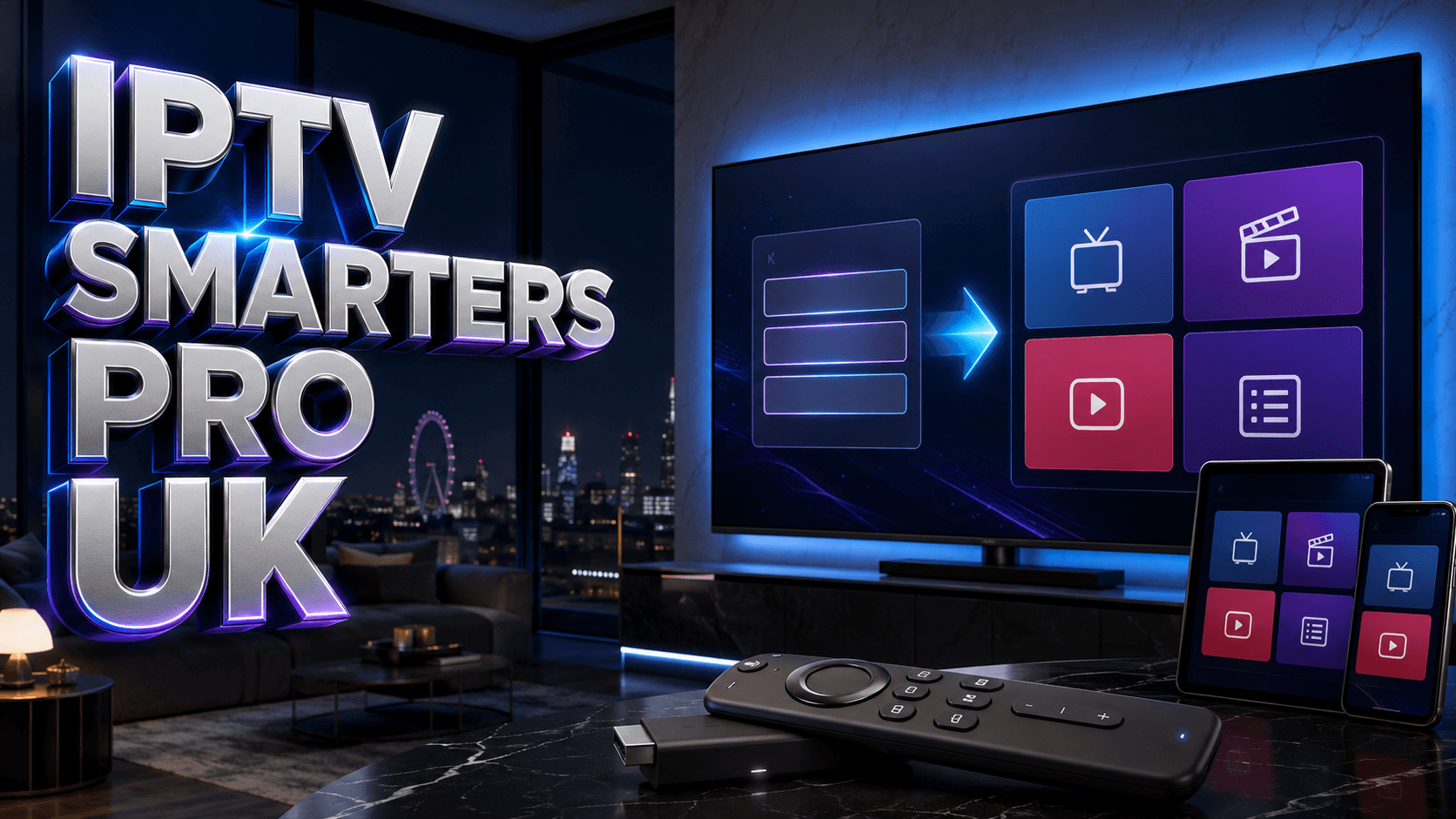
Learning to setup IPTV Smarters Pro UK correctly transforms your streaming devices into professional-grade IPTV platforms delivering thousands of channels with intuitive navigation, comprehensive Electronic Program Guides (EPG), and extensive customization options. IPTV Smarters Pro dominates the UK market as the most popular IPTV player application, trusted by hundreds of thousands of subscribers for its reliability, feature completeness, and compatibility across Fire TV Stick, Android devices, Smart TVs, iOS, and Windows platforms. This comprehensive guide covers installation procedures for all major platforms, credential configuration, interface optimization, and troubleshooting common issues specific to UK IPTV services.
Understanding IPTV Smarters Pro Features and Benefits
Before beginning setup IPTV Smarters Pro UK installation, understanding the application’s capabilities helps you maximize your IPTV experience. IPTV Smarters Pro supports multiple login methods including Xtream Codes API (most common), M3U playlist URLs, and direct portal credentials, ensuring compatibility with virtually all UK IPTV providers. The application features integrated video players supporting all major codecs, eliminating external player requirements and simplifying configuration.
Advanced features include multi-screen support (picture-in-picture viewing), parental controls with PIN protection, favorites management across live TV and VOD content, EPG with 7-14 day program schedules, catch-up TV functionality (watch programs broadcast up to 7 days ago), series tracking (automatic notifications for new episodes), and customizable interface themes. Premium UK IPTV service selection guide providers optimize their services specifically for IPTV Smarters Pro, ensuring seamless integration and maximum feature availability.
Installing IPTV Smarters Pro on Fire TV Stick
Fire TV Stick represents the most popular platform for UK IPTV viewing, making setup IPTV Smarters Pro UK on this device particularly important. Begin by preparing your Fire TV Stick: navigate to Settings > My Fire TV > Developer Options, then enable “Apps from Unknown Sources” and “ADB Debugging.” This permits installation of applications outside Amazon’s official Appstore.
Install the Downloader app from Amazon Appstore (search “Downloader” and install the official AFTVnews version). Launch Downloader, then enter this URL in the address field: https://www.iptvsmarters.com/download (alternatively, use the specific download link provided by your IPTV service provider, as many supply customized IPTV Smarters Pro versions with their branding and pre-configured settings). Download the APK file (approximately 25 MB), then install when prompted. Installation completes in 20-30 seconds—click “Done” then “Delete” to remove the installation file and free storage space.
Fire TV Stick Optimization Settings
After installation, optimize Fire TV Stick performance for IPTV streaming:
- Disable data monitoring: Settings > Preferences > Privacy Settings > Device Usage Data > Disable
- Disable Amazon apps: Settings > Applications > Manage Installed Applications > Disable unused Amazon apps
- Clear cache regularly: Settings > Applications > Manage Installed Applications > IPTV Smarters Pro > Clear Cache weekly
- Use wired Ethernet: Purchase Amazon Ethernet adapter (£20) for stable connections during live sports
Installing IPTV Smarters Pro on Android Devices
Android phones, tablets, and TV boxes provide straightforward setup IPTV Smarters Pro UK installation. For Android TV boxes (Nvidia Shield, Mi Box, generic Chinese boxes), visit Google Play Store, search “IPTV Smarters Pro,” and install the official application by WHMCS SMARTERS. Ensure you select the legitimate app (look for the developer name WHMCS SMARTERS and millions of downloads)—numerous fake applications attempt to exploit IPTV Smarters Pro’s popularity.
For Android devices where IPTV Smarters Pro isn’t available in Google Play Store (region restrictions occasionally apply), download the APK directly from iptvsmarters.com using Chrome browser. Navigate to Settings > Security > Unknown Sources and enable installations from Chrome. Download the APK, then open the downloaded file to initiate installation. Android automatically installs the application, adding it to your app drawer within seconds.
Configuring IPTV Smarters Pro with UK Service Credentials
After completing setup IPTV Smarters Pro UK installation, launch the application which presents a clean login screen with three primary options: “Login with Xtream Codes API” (most common method), “Login with M3U URL or Playlist,” and “Login with Xtream Codes Panel.” Your IPTV provider supplies appropriate credentials—typically username, password, and server URL for Xtream Codes API login, or M3U playlist URL for playlist-based login.
For Xtream Codes API login (standard configuration), enter your credentials exactly as provided by your reliable service for UK viewers service. Username might be your email address or numeric ID. Password typically consists of alphanumeric characters—pay attention to capitalization and special characters. Server URL format: http://provider.com:port or https://provider.com (includes http:// or https:// prefix). After entering credentials, click “LOGIN” and wait 30-60 seconds while IPTV Smarters Pro connects to servers and downloads your channel list, EPG data, VOD library, and series catalog.
Navigating IPTV Smarters Pro Interface
IPTV Smarters Pro features intuitive navigation designed for remote control operation. The main screen displays four primary tabs: Live TV (all live channels organized by categories), Movies (video-on-demand movie library), Series (TV show collection with episode tracking), and Settings (configuration options). Within Live TV, channels organize into categories—typical UK services include UK Channels, Sports, Entertainment, Movies, News, Kids, Documentary, and International sections.
The integrated EPG (Electronic Program Guide) displays current and upcoming programs for the next 7-14 days depending on your provider’s EPG configuration. Click any channel to view its schedule, then select specific programs to set reminders or access catch-up content if the program aired within the past week. Quality compare UK IPTV subscription options services provide comprehensive EPG coverage for all UK channels including BBC, ITV, Channel 4, Sky channels, and sports networks.
Customization and Personalization Options
Personalize your IPTV Smarters Pro experience through extensive settings:
- Interface theme: Choose between Classic, Modern, and Material Design themes
- Favorites management: Long-press any channel, movie, or series to add to favorites for quick access
- Parental controls: Settings > Parental Control > Enable PIN protection for adult categories
- Video player settings: Choose internal player or external player (VLC, MX Player), adjust buffer size
- EPG settings: Set EPG time offset if program times display incorrectly (UK users typically use UTC+0 or UTC+1 depending on GMT/BST)
Optimizing Streaming Performance
Several optimization techniques improve streaming reliability when you setup IPTV Smarters Pro UK services. First, adjust buffer size: navigate to Settings > Player Settings > Buffer Size and select “Large” if you experience occasional stuttering—this uses more RAM but pre-loads more video data, preventing interruptions during minor connection fluctuations. Test your internet speed at Speedtest.net ensuring minimum 25 Mbps for HD content.
Second, enable hardware acceleration: Settings > Player Settings > Hardware Acceleration > Enable. This offloads video decoding to your device’s GPU rather than CPU, reducing processor load and improving playback smoothness, particularly beneficial on lower-powered devices like Fire TV Stick Lite or budget Android boxes. Third, adjust video quality settings—if you experience persistent buffering, select 720p streams instead of 1080p or 4K, significantly reducing bandwidth requirements without dramatic quality loss on smaller screens.
Troubleshooting Common IPTV Smarters Pro Issues
Common problems include login failures (verify credentials accuracy, check server URL includes http:// prefix, confirm your subscription remains active), channels not loading (check internet connectivity, try different channels to identify server-specific issues, contact provider support), EPG not displaying (wait 24 hours for initial EPG synchronization, manually refresh in settings, verify provider supplies EPG data), and app crashes (clear cache, reinstall application, update to latest version).
If all channels suddenly stop working, UK ISP blocking may be affecting your provider’s servers. Connect to a VPN (ExpressVPN, NordVPN, Surfshark) before launching IPTV Smarters Pro to bypass ISP restrictions. If VOD content plays but live TV doesn’t, your device’s time/date settings might be incorrect—ensure automatic time zone detection is enabled. For persistent issues, premium providers offer technical support via WhatsApp, Telegram, or email with typical response times under 2 hours.
Ready to Switch to IPTV?
Explore comprehensive reviews and find the perfect IPTV provider for your needs. Compare features, pricing, and channel lineups to make the best choice for your household.
Buy UK IPTV subscription →Related UK IPTV Guides
Compare the alternative interface in our TiviMate setup guide, or revisit the broader UK Firestick tutorial.
Frequently Asked Questions
Is IPTV Smarters Pro free to use?
Yes, IPTV Smarters Pro is completely free to download and use—no subscription fees, in-app purchases, or premium unlocks required. You only pay for your IPTV service subscription (£10-20 monthly typically), not the player application itself. Beware of websites charging for IPTV Smarters Pro access—these are scams as the official application remains free across all platforms.
Can I use IPTV Smarters Pro on multiple devices simultaneously?
Yes, install IPTV Smarters Pro on unlimited devices using the same credentials. However, simultaneous streaming capability depends on your IPTV provider’s subscription terms—most services allow 2-3 concurrent connections on a single subscription. Attempting to exceed your connection limit results in “Maximum connections reached” errors, requiring you to stop playback on one device before starting on another.
Why does my IPTV Smarters Pro show channels but no EPG data?
EPG data requires 24-48 hours for initial synchronization after first login. If EPG remains absent after this period, your provider may not supply EPG data, or their EPG server might be experiencing issues. Try manually refreshing EPG in Settings > EPG Settings > Refresh EPG. Some budget IPTV providers omit EPG entirely to reduce server costs—consider upgrading to premium services for complete EPG coverage.
Does IPTV Smarters Pro work on iOS devices like iPhone and iPad?
Yes, IPTV Smarters Pro offers an iOS version available through the Apple App Store. Search “IPTV Smarters Pro” and install the official app (purple icon with play button). iOS configuration mirrors Android setup—enter your Xtream Codes API credentials or M3U URL as provided by your IPTV service. iOS devices require iOS 12.0 or higher for compatibility with current IPTV Smarters Pro versions.
Ready for the Best IPTV Subscription?
Join thousands of satisfied customers with the best and fastest family subscription in the USA, UK, Canada & Australia.