
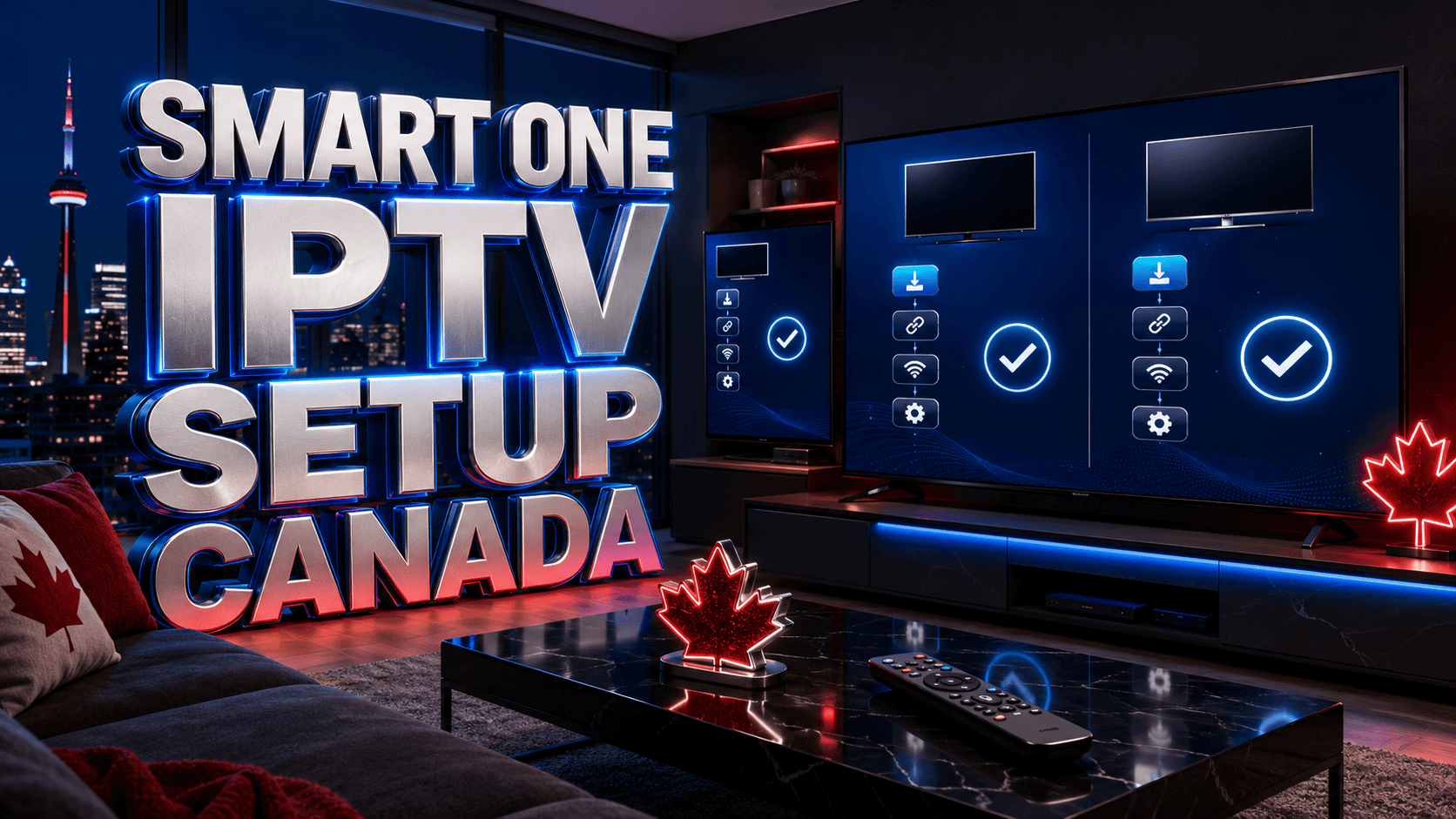
Canadian cord-cutters with Samsung and LG Smart TVs discover that Smart One IPTV setup Canada eliminates need for external streaming boxes, delivering comprehensive IPTV access directly through built-in TV apps. Smart One IPTV (also called SIPTV) has emerged as the premium Smart TV IPTV player, supporting both Samsung’s Tizen OS and LG’s webOS platforms while providing superior features compared to alternatives like Smart IPTV or Set IPTV.
This integrated approach proves particularly elegant—no additional hardware cluttering entertainment centers, no extra remote controls, and no HDMI ports consumed. Simply install Smart One IPTV directly on your Samsung or LG television, configure IPTV credentials, and access thousands of channels including TSN, Sportsnet, CBC, RDS, and international programming through your TV’s native interface alongside Netflix, Prime Video, and other streaming apps.
Smart One IPTV vs Alternative Smart TV Apps
Several IPTV applications target Smart TV platforms, but Smart One IPTV distinguishes itself through specific advantages relevant to Canadian users. Unlike Smart IPTV which charges per device activation (CAD $7-8 annually per TV), Smart One operates on simpler subscription model with better multi-device support for households with multiple Samsung or LG televisions.
Set IPTV provides basic functionality but lacks advanced features like EPG customization, recording capabilities, and parental controls that Smart One includes. For families requiring content filtering or users wanting sophisticated program guides for Canadian channels, Smart One’s feature set justifies its slightly higher cost.
When you compare Canada IPTV subscription options, verify the provider supplies M3U playlist URLs or Xtream Codes API credentials compatible with Smart One IPTV to ensure seamless integration with your Smart TV setup.
Compatible Samsung TV Models (Tizen OS)
Smart One IPTV supports Samsung Smart TVs running Tizen OS version 3.0 or newer, covering models manufactured from 2016 onward. This includes popular Canadian-market series:
- 2024-2026 Models: All current QLED, Neo QLED, Crystal UHD, and The Frame series
- 2020-2023 Models: TU7000, TU8000, Q60T, Q80T, Q90T series and equivalents
- 2017-2019 Models: MU6300, MU7000, Q6F, Q7F, Q8F series (verify Tizen version in settings)
Verify compatibility by checking Settings → Support → About This TV on your Samsung device. If Tizen OS version displays 3.0 or higher, Smart One IPTV will function properly. Older pre-2016 models running legacy Samsung Smart Hub platforms lack compatibility and require external streaming devices.
Compatible LG TV Models (webOS)
Smart One IPTV supports LG Smart TVs running webOS 3.0 or newer, encompassing models from 2016 forward including:
- 2024-2026 Models: All current OLED (C4, G4, Z3 series), QNED, NanoCell, and UHD series
- 2020-2023 Models: CX, C1, C2, C3 OLED series, NANO90/99 series, UN7300 series
- 2016-2019 Models: B6, C6, E6 OLED series, UH6100, UH7700, SJ8000 series
Check webOS version in Settings → All Settings → General → About This TV. WebOS 3.0+ ensures Smart One IPTV compatibility. Older 2014-2015 LG models with webOS 1.0-2.0 lack support, necessitating external streaming boxes for IPTV access.
Step-by-Step Samsung Smart TV Installation
Downloading Smart One IPTV on Samsung
Press the Home button on Samsung remote to access Smart Hub. Navigate to “Apps” icon (bottom of screen) and select it. In the Samsung Apps store, use search function (magnifying glass icon) to search for “Smart One IPTV” or “SIPTV.”
Select the Smart One IPTV application from search results—verify developer name matches official app to avoid unofficial clones. Click “Install” and wait 30-60 seconds for download and installation to complete. The app appears in your Apps list once installed.
Initial Configuration on Samsung
Launch Smart One IPTV from Apps menu. The app displays activation screen showing unique MAC address assigned to your TV—note this MAC address as you’ll need it for service activation. Contact your reliable service for Canadian viewers providing this MAC address to link your IPTV subscription to the Smart One app.
Most providers activate within minutes to hours. Once activated, restart Smart One IPTV and your channel list loads automatically. Navigate using Samsung remote’s directional buttons, selecting channels with Enter/OK button.
Step-by-Step LG Smart TV Installation
Downloading Smart One IPTV on LG
Press the Home button on LG Magic Remote to open webOS interface. Navigate to LG Content Store icon (shopping bag symbol) and open it. Use search function to find “Smart One IPTV” or browse Entertainment → Video category where IPTV apps typically appear.
Select Smart One IPTV from results, verify it’s the official application, and click “Install.” The app downloads and installs within 30-60 seconds, then appears on your webOS home screen for easy future access.
Initial Configuration on LG
Launch Smart One IPTV from home screen. Similar to Samsung version, the app displays unique MAC address for your LG television. Provide this MAC to your IPTV service provider for activation. Some providers offer self-service activation portals where you enter MAC address directly; others require contacting support staff.
After provider activation completes, relaunch Smart One IPTV. Channels load automatically with EPG data if provider supports it. Use LG Magic Remote’s pointer functionality to navigate easily, clicking channels to begin streaming.
Advanced Configuration and Optimization
EPG Setup and Customization
Smart One IPTV supports external EPG sources for enhanced program guide information. If your IPTV provider supplies separate EPG URL, access Smart One settings (usually via remote’s Menu or Settings button while app is open) and locate EPG configuration section. Enter EPG URL and set refresh interval (12-24 hours typical) ensuring schedules stay current.
Configure timezone to match your Canadian location—Eastern (Ontario/Quebec), Central (Manitoba), Mountain (Alberta/Saskatchewan), or Pacific (BC)—ensuring displayed program times reflect local time rather than UTC or other zones. Incorrect timezone causes 6 PM news to display as 11 PM or midnight, creating confusion.
Creating Favorites Lists
With 10,000+ channels available through comprehensive IPTV services, favorites organization proves essential. Long-press or use context menu on any channel to add to favorites. Create multiple favorite lists organizing by content type:
- Canadian Sports: TSN, Sportsnet, RDS, CBC Sports
- Canadian News: CBC News Network, CTV News Channel, CP24
- Entertainment: CTV, Global, Citytv, W Network
- International: Channels from your cultural background
Parental Controls Configuration
Smart One IPTV includes PIN-based parental controls protecting children from inappropriate content. Access settings menu, enable parental controls, create 4-digit PIN code, then specify which channels or channel categories require PIN entry before viewing. This functionality proves essential for families with young children accessing adult-oriented international channels sometimes included in comprehensive IPTV packages.
Optimizing Network Connection for Smart TVs
Smart TVs’ built-in WiFi often performs adequately for HD streaming but may struggle with 4K content or during peak evening hours when household network traffic peaks. Test your connection at Speedtest directly on Smart TV (most Samsung and LG TVs include web browsers supporting speed tests).
For optimal reliability, connect Smart TVs via Ethernet. Run Cat6 cable from router to TV’s Ethernet port, configure TV network settings to use wired connection, and enjoy superior stability eliminating WiFi interference affecting streaming quality. This wired approach proves particularly valuable for wall-mounted TVs in entertainment rooms where Ethernet cables can route through walls during installation.
If WiFi remains necessary, position router as close to TV as practical, use 5GHz band rather than congested 2.4GHz, and ensure no physical obstructions (metal shelves, aquariums, appliances) block signal path between router and television.
Troubleshooting Common Smart One IPTV Issues
Channels Not Loading After Installation
If Smart One displays “No channels” or empty lists after installation, activation hasn’t completed yet. Contact IPTV provider confirming they received your MAC address and completed activation process. Some providers require 12-24 hours for activation; others activate instantly. Force-close Smart One app completely (Samsung: press and hold Return button, select Close All; LG: hover over app, press X) and relaunch after confirming activation.
Buffering During Prime Time Viewing
Evening buffering typically indicates insufficient bandwidth during network congestion. Verify internet speeds meet requirements (25+ Mbps for HD, 50+ for 4K). Close bandwidth-consuming apps on other household devices—pause downloads, stop 4K streaming on other TVs, disconnect smart home devices performing updates. Switch to wired Ethernet if using WiFi. Consider implementing VPN on router level to prevent ISP throttling of IPTV traffic during peak hours.
EPG Showing Wrong Times or Missing Data
Incorrect EPG times stem from timezone misconfiguration. Verify Smart One settings show correct Canadian timezone. If EPG data appears completely missing, your IPTV provider may not supply EPG, or their EPG URL may be incorrect. Contact provider support requesting proper EPG configuration for Smart One IPTV compatibility.
Subscription Management and Renewal
Smart One IPTV itself requires separate activation (typically CAD $15-25 annually or lifetime purchase CAD $60-80) beyond your IPTV content subscription. Some IPTV providers include Smart One activation in their packages; others require separate purchase through Smart One’s official website.
Your IPTV content subscription renews independently based on provider terms—monthly, quarterly, or annually. Monitor expiration dates ensuring service continuity. Most providers email renewal reminders 7 days before expiration, but proactive tracking prevents unexpected service interruptions during important events like NHL playoffs.
Smart TV IPTV vs External Streaming Boxes
While Smart One IPTV delivers excellent integrated experience, understanding limitations versus external devices informs decision-making. Smart TV processors typically underperform compared to dedicated streaming boxes—Samsung and LG TVs from 2018-2020 may struggle with very high bitrate 4K streams that Nvidia Shield TV or Formuler Z11 handle effortlessly.
Smart TV apps receive less frequent updates than phone/tablet apps, occasionally resulting in compatibility issues when IPTV providers update server infrastructure. External Android boxes running IPTV Smarters Pro or TiviMate receive regular updates maintaining compatibility.
However, Smart TV integration’s convenience—single remote, no additional devices, cleaner setup—outweighs performance differences for most casual users streaming primarily HD content. Enthusiasts demanding absolute best 4K performance or advanced features like recording may prefer external boxes despite added complexity.
Ready to Stream Premium IPTV in Canada?
Access 4K NHL streams, live Canadian channels, international sports, and movies without buffering or ISP throttling.
Explore Best Canada IPTV Subscription Options Now →Related Canada IPTV Guides
Compare another player in the iPlayer IPTV setup guide, or use the EPG troubleshooting guide.
Frequently Asked Questions About Smart One IPTV Canada
Do I need to pay for both Smart One IPTV and my IPTV subscription?
Yes, typically these are separate charges. Your IPTV service subscription (CAD $15-30 monthly) provides channel content. Smart One IPTV app requires separate activation (CAD $15-25 annual or CAD $60-80 lifetime) enabling the application on your Smart TV. Some premium IPTV providers include Smart One activation in packages, but most require separate purchase. When you Canada IPTV service selection guide, clarify whether Smart One activation is included or requires separate purchase.
Can I use one Smart One activation on multiple Samsung or LG TVs?
Each television requires separate Smart One activation since each TV has unique MAC address. Lifetime activations apply only to specific MAC address provided during purchase. Households with multiple Smart TVs need individual activations per television, though some resellers offer multi-device discount packages. Annual subscriptions prove more cost-effective than lifetime purchases for households planning TV upgrades within 3-5 years.
Will Smart One IPTV work on older Samsung or LG TVs from 2015?
Samsung TVs from 2015 running older Smart Hub (pre-Tizen) platforms lack Smart One compatibility. LG TVs from 2015 with webOS 2.0 may work but experience compatibility issues; webOS 3.0+ (2016+) ensures reliable operation. For older incompatible Smart TVs, invest in CAD $80 Fire TV Stick or Android box providing IPTV access via HDMI while preserving Smart TV’s other apps (Netflix, Prime Video) functionality.
Does Smart One IPTV support recording like TiviMate or MyTVOnline?
Smart One IPTV offers limited recording compared to Android apps like TiviMate. While basic time-shift functionality exists (pausing and rewinding live TV), full scheduled recording to external storage isn’t supported due to Smart TV platform limitations. Users requiring robust recording features for NHL games or series should consider external Android devices (Formuler boxes, Nvidia Shield) running apps designed specifically for recording functionality with USB or network storage support.
Ready for the Best IPTV Subscription?
Join thousands of satisfied customers with the best and fastest family subscription in the USA, UK, Canada & Australia.